Windows 11: Useful tips
Microsoft Windows 11 is packed with so many useful features for users that they can not do without. Having a PC with Windows 11, makes your work life easy and keeps you organized. It has been optimized for speed, connectivity, AI assistance, entertainment and much more.

Windows 11 - Useful Tips Image | Photo by Antonis Georgiou on Unsplash
1. Customizing keyboard shortcuts

Image for keyboard shortcuts | Photo by Quilia on Unsplash
The ability to customize keyboard shortcuts increases the efficiency of an user. It can help you to do repetitive tasks quickly, e.g. opening files or applications.
How to create your own shortcut:
- Right-click on a program's shortcut.
- Select "Properties" and go to the "Link" tab .
- Click the "Keyboard shortcut" field and enter your desired combination.
2. Modify schedule for automatic background updates
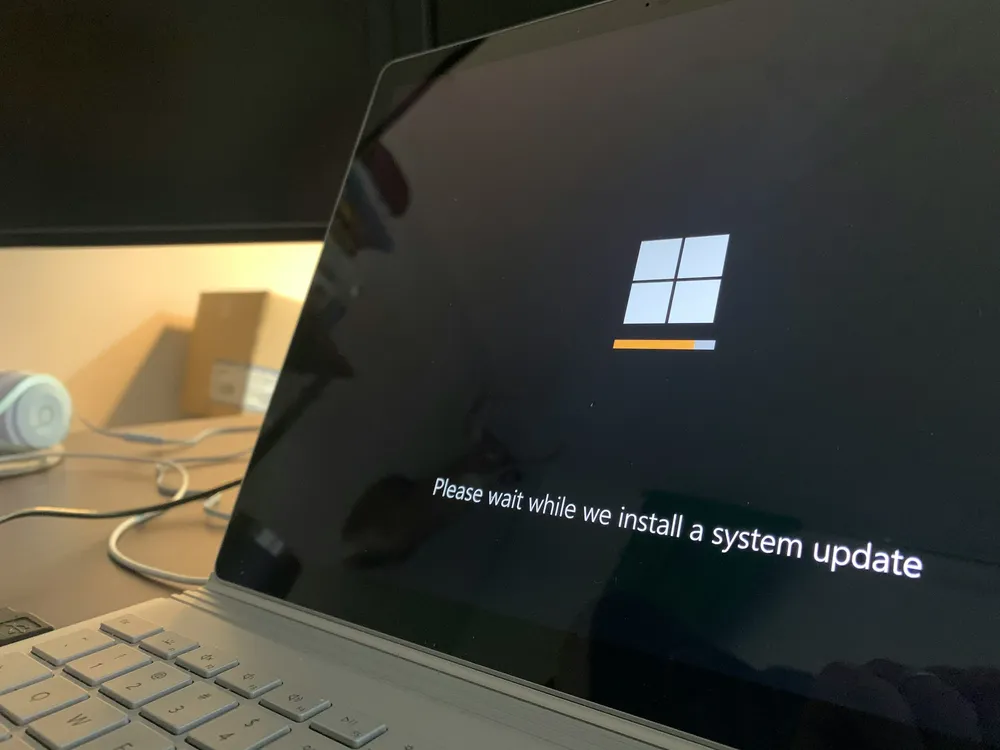
Automatic background Windows Update | Photo by Clint Patterson on Unsplash
By default, background updates are scheduled by Windows OS and they happen automatically. They are useful for security reasons. But sometimes they can be disrupting your ongoing tasks when you are busy. With Windows 11, you can specify when the automatic updates will be performed so your work is not interrupted.
How to customize the schedule for automatic updates:
- Open Settings > Windows Update .
- Click on “Change active hours” and set time periods during which no updates should occur.
3. Using shortcut for Snap function
Shortcut for Snap function image | Photo by Sunder Muthukumaran on Unsplash
The windows snap-and-resize feature has been supported by Microsoft since Windows 7 but now it gets much better with Windows 11. It now has the ‘Snap Layouts’ choice that makes multitasking much easier. Like before, you can still drag windows to the left or right sides and corners of the screen to make a half or quarter layouts. But now it also adds a hover menu for the layout choice selection on the maximize button of a window. You may choose a large window on the left and two other windows on the right, one on top of another. You may choose other options too that depend on the size of your display. This choice can be accessed using a shortcut too. You may click on a layout and drag your windows to any position of your choice.
Snap shortcuts:
- Windows + left/right arrow: Pin windows to screen edges.
- Windows + up/down arrow: Maximize or minimize window.
You may turn off this feature in the Settings.
4. Using Widgets
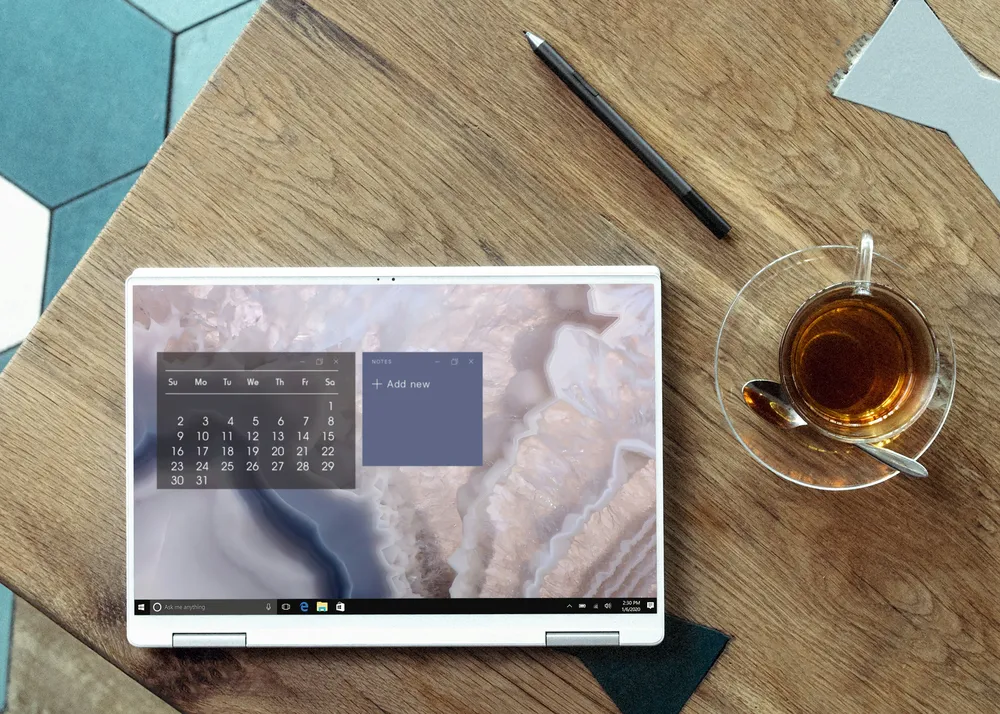
Windows Widgets image | Photo by Dell on Unsplash
The way we use our phones to take a quick look at the home screen widgets to see the clock, weather or news etc. the same look and feel is supported by Windows 11 with the use of widgets on your desktop.
You can enable the Widgets icon on the taskbar that lets you check the weather, interact with your Outlook calendar, display the latest news, get updates on stock prices etc. You may customize the widgets by rearranging them or their settings. Third-party widgets e.g. from facebook or spotify can also be added.
How to activate widgets:
- Click on the widget icon in the taskbar or press Windows + W.
- If widgets are currently disabled, you can enable them in the settings.
5. Virtual Desktops
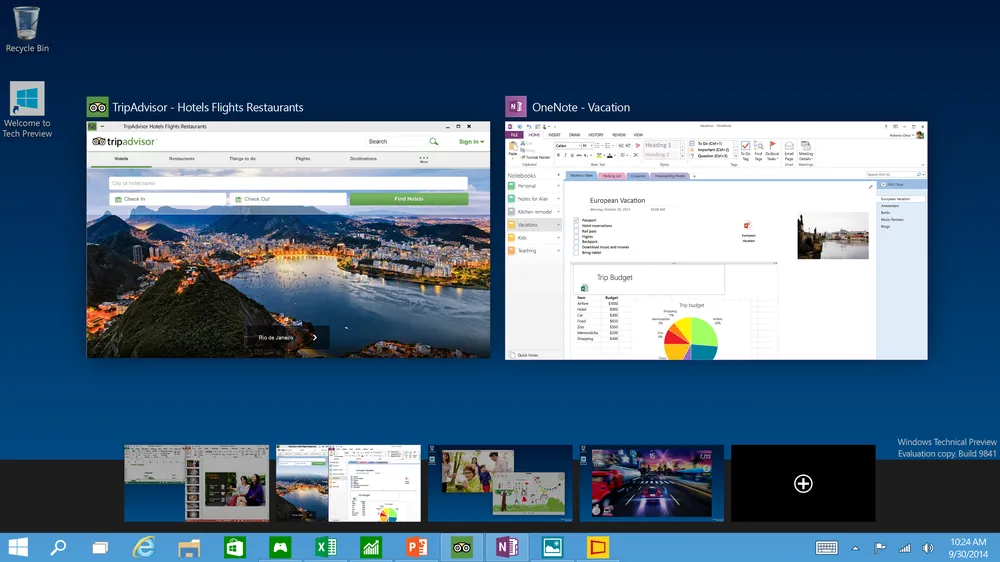
Virtual Desktops image | Photo by Matthew Garcia (mgarcia36) on wallpapersafari.com
Virtual desktops can help separate your work and leisure or playing activities and easily help to switch between them to keep you organized.
How to set up virtual desktops:
- Press Windows + Tab to open the overview.
- Click on "New Desktop" to create another desktop.
- Switch between desktops using Windows + Ctrl + left/right arrow.
6. Activate system restore
Windows system restore image | Photo by Philip Oroni on Unsplash
System restore feature is useful for recovering from data loss or unwanted or faulty windows updates. This feature restores your PC to a previously working state.
Here's how to activate recovery:
- Open Control Panel > System > System Protection.
- Select the desired drive and click on "Configure".
- Activate the protection and set the maximum storage size.
7. To backup system with Windows Backup App

Windows cloud Backup image | Photo by Growtika on Unsplash
When you plan to move to a new PC or hardware setup with Windows 11 OS, you can choose to backup all your apps, files, settings, wifi login credentials, to oneDrive cloud storage. So when you login using your OneDrive credentials, your data is all restored as your previous setup. To do this Windows update has introduced a new app for Backup.
8. Storage optimization
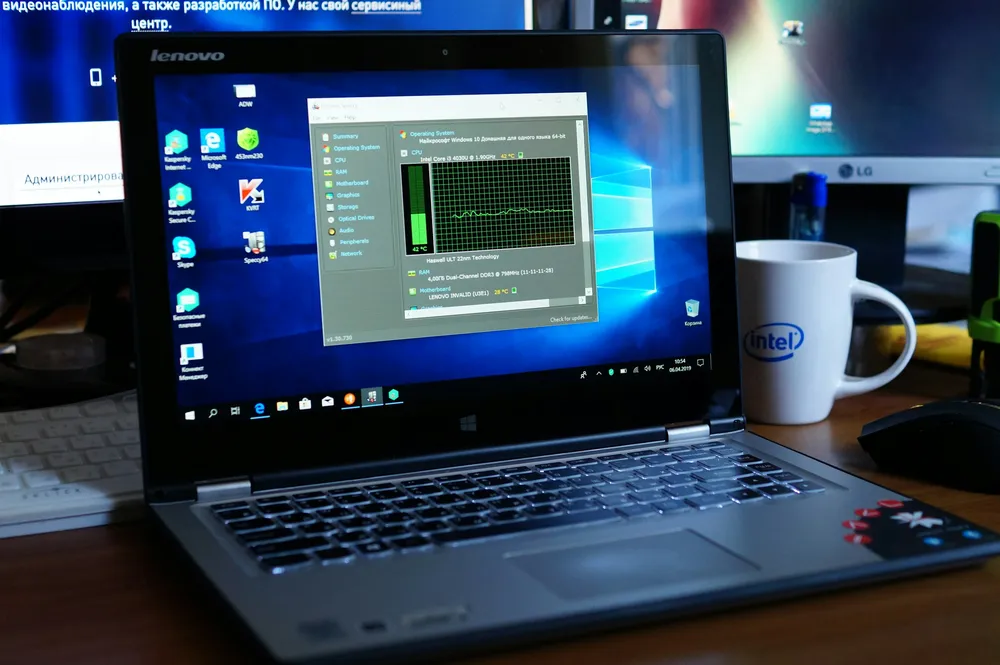
Storage Optimization Image | Photo by Ilya T on Unsplash
Windows 11 has the feature of storage optimization. This feature keeps your hard drive and system clean and organized by automatically removing temporary files and old system data.
How to activate storage optimization:
- Go to Settings > System > Storage .
- Activate "Storage optimization" and configure the desired intervals.
9. Quick access to important tools and features with Windows key

Windows Key Image | Photo by Linda Xu on Unsplash
Using shortcut-keys has been a very useful and handy feature since the beginning of windows OS invention. It helps user’s productivity and saves time. The following are some of the useful Windows 11 shortcuts that everyone should know:
Windows Key-W - Opens the Widgets panel
Windows Key-A - Used to access the Quick Settings
Windows Key-Z - Used to access Snap Layouts
Windows Key-K - Used to cast media
Windows Key-X - Opens a menu for quick access to some important system tools such as Device Manager, Command Prompt, and Control Panel.
Windows Key-V - Shows clipboard history
Windows Key-Shift-S - Open the screenshot tool.
10. Using Enhanced File Explorer
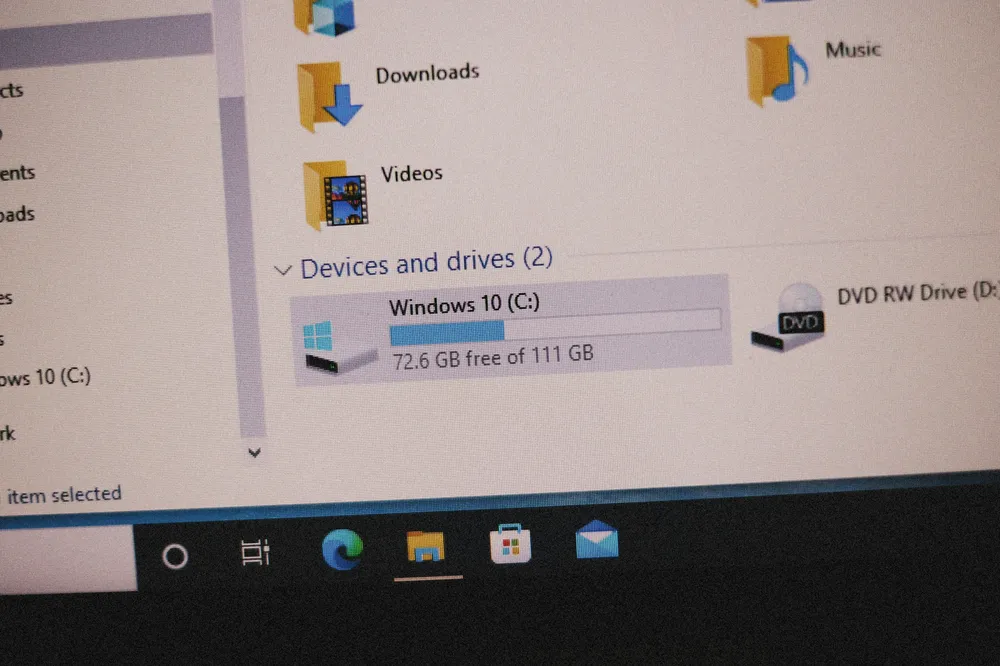
Windows File Explorer Image | Photo by Alexey Demidov on Unsplash
The file explorer in Windows 11 lets you open multiple tabs instead of requiring to open multiple windows of explorer to access different parts of your file system at the same time. Just like a web browser, you may right-click on a folder and choose "Open in New Tab," to open a new instance of file explorer window. You are allowed to even drag a file between tabs and drag them between a list or more conveniently drag a tab to left or right in any position.
A “New” button is also introduced for creating new folders, shortcuts and documents based on installed programs. The buttons change based on context, too. It has recently added an ‘AI Actions’ button in the context menu of files in file explorers.
Updated: 11 May 2026
Related
-
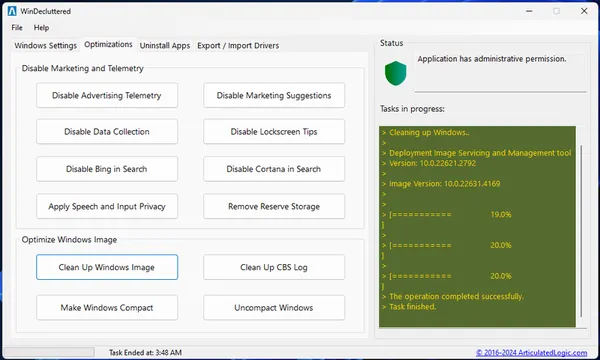 Optimizing Microsoft Windows v3.5 Features
 -
 Export or Import Drivers in Microsoft Windows v3.5 Features